Tasks
The Tasks tab is the main view of the IntelliKeep panel. It lists your tasks, lets you complete them with one click, and opens the task dialog to create or edit them.
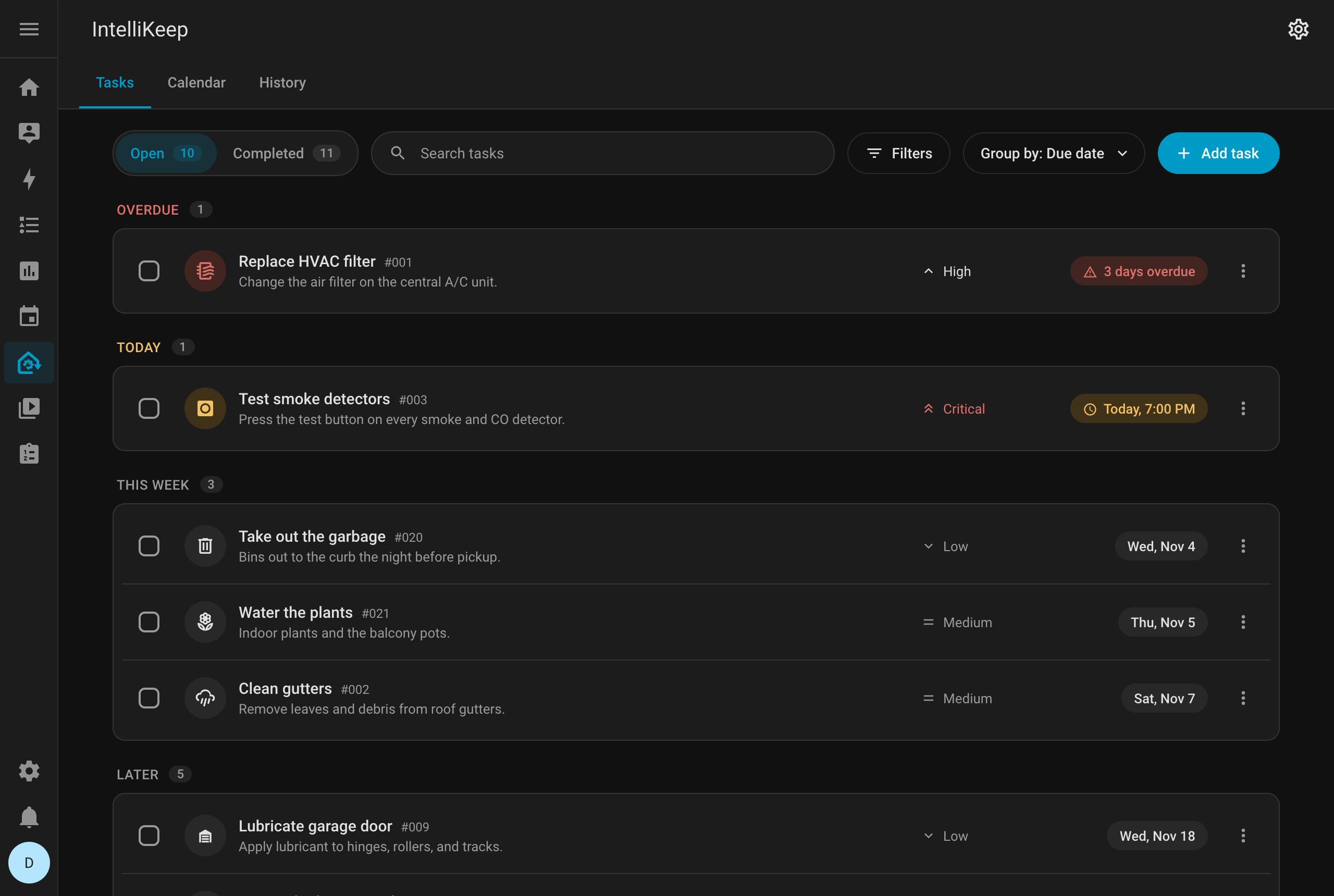
The task list
At the top of the list you choose between:
- Open: every task that still has to be done
- Completed: the tasks completed in the last 30 days, most recent first (older ones stay in the History tab)
Open tasks are grouped by due date by default: Overdue, Today, This week, Later and No due date. Group by switches to grouping by Priority or Area, or turns grouping off. The choice is remembered in the browser.
Each row shows the task icon, its name and number (#001), its description, the priority and a due chip such as 3 days overdue, Today, 7:00 PM or Sat, Nov 7. Red and amber are kept for what needs attention: overdue tasks, tasks due today and Critical priority.
Completing a task
Tick the checkbox on a task to complete it. A Task completed message appears with Undo, which reopens the task right away. Completing a recurring task creates its next occurrence (see Recurring tasks).
The name of the Home Assistant user who completed the task is recorded in its history.
The ⋮ menu
Each task has a ⋮ menu with:
- Edit: open the task dialog
- Duplicate: open the new-task form with the same fields filled in
- History: open the task dialog on its History tab
- Delete: delete the task, after a confirmation
Search and filters
- Search finds tasks by name, description or number
- Filters narrows the list by priority, area and device. When you filter by both area and device, you can combine them as Area OR device or Area AND device
Selecting an area narrows the device picker to the devices in that area. Active filters show as chips that you can remove one by one or all at once, and they are remembered in the browser.
On phones
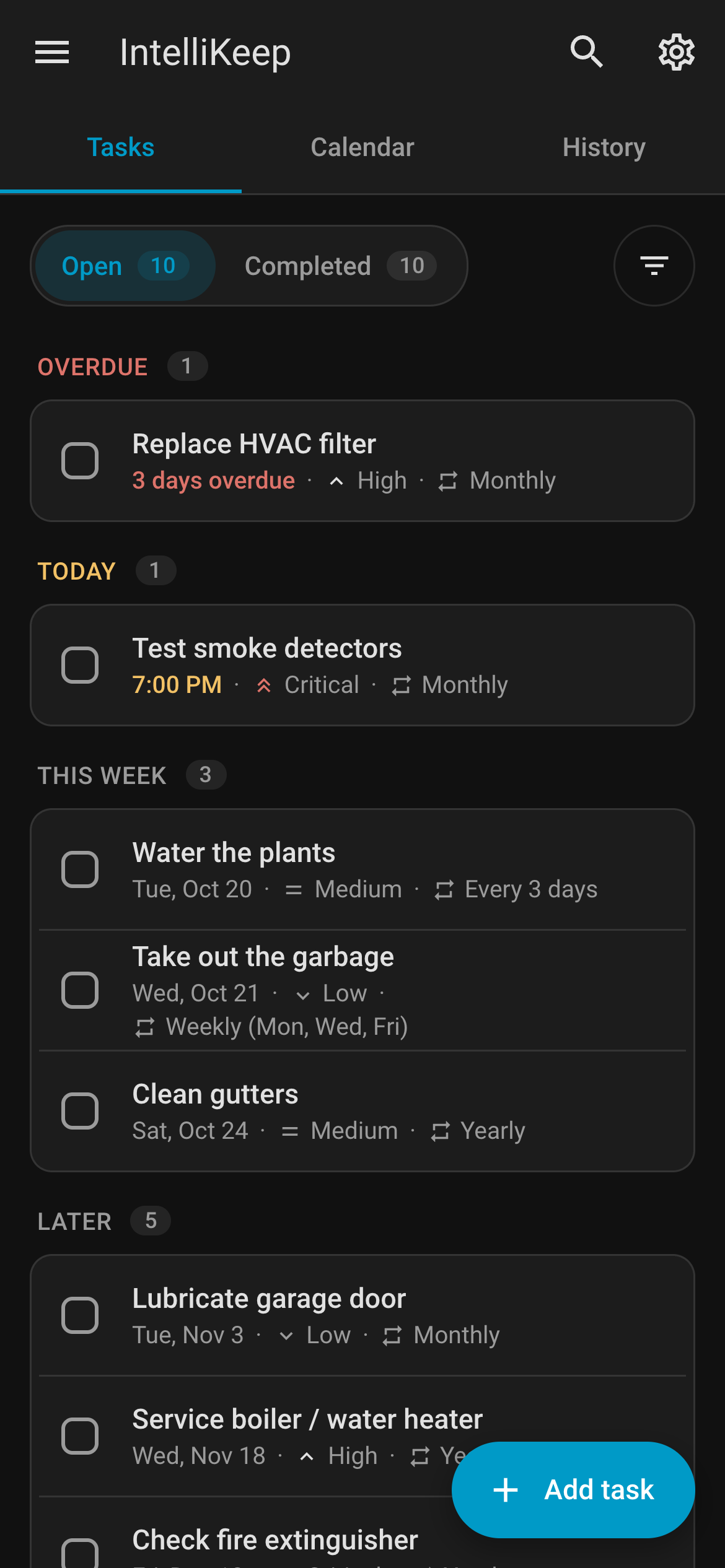
On phones and narrow windows (under 600px wide, or when Home Assistant hides the sidebar), the panel adapts:
- The Tasks, Calendar and History tabs fill the width, and search moves to a magnifier in the header
- Each row keeps only the checkbox and the name, with the due date, priority and repeat in a line below
- Group by moves into Filters, and Add task becomes a floating button
Creating and editing a task
Click Add task in the list toolbar to create a task. Click a task, or choose Edit from its ⋮ menu, to open it. Tasks can also be created with the intellikeep.create_task action, or from Home Assistant's To-do list.
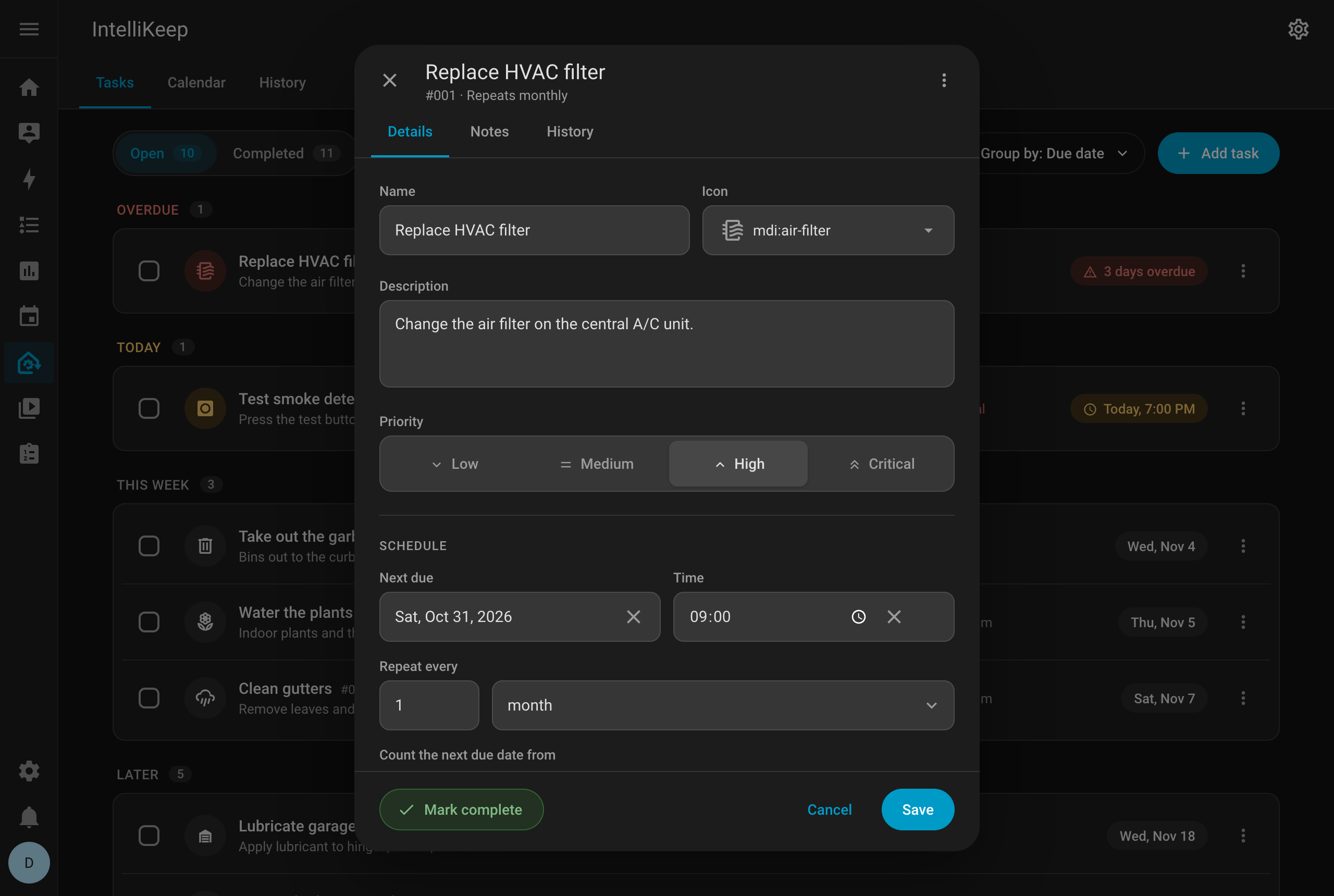
The dialog header shows the task name, its number and how it repeats, plus a ⋮ menu with Duplicate and Delete. An existing task has three tabs: Details, Notes and History. The footer holds Mark complete, Cancel and Save.
Task fields
| Field | Description |
|---|---|
| Name | Task title (required) |
| Icon | Any Material Design Icon, picked with Home Assistant's icon picker (search by name or keyword). Tasks without an icon show a wrench (mdi:wrench-outline) |
| Description | Optional free text |
| Priority | Low, Medium, High or Critical |
| Due date and Time | When the task is due. The × next to the time removes it, making the task all day |
| Repeat | Does not repeat, or Repeat every N days, weeks, months or years |
| Repeat on | For weekly tasks: the days of the week it repeats on |
| Count the next due date from | For recurring tasks: Completion date or Original due date (see below) |
| Linked to | Home Assistant areas and devices, shown as removable chips. The area and device filters use these links |
| Remind me | How many days before the due date the reminder is sent. New tasks start with the default from the integration options |
| Notify when overdue | Send a notification once the task is overdue |
All-day tasks
A due date without a time is an all-day task. It is stored as midnight, as are the dates set from the calendar and from Home Assistant's To-do lists. Due today, such a task shows Today instead of Today, 12:00 AM, and the task dialog shows its time as All day.
Recurring tasks
When you complete a recurring task, IntelliKeep records the completion and creates the next occurrence, with a new task number and the same name, icon, priority, links and notification settings. Each occurrence keeps its own notes and history, and the History tab of the task dialog lists the previous occurrences.
Repeat every N periods
A task repeats every N days, weeks, months or years. For example, Repeat every 3 months for an HVAC filter, or Repeat every 2 weeks for cleaning the fridge.
Monthly and yearly repeats keep the day of the month, and fall back to the last day of shorter months: a task due on January 31 that repeats monthly falls due on February 28 (or 29).
Count the next due date from
This setting decides what the next due date is counted from:
- Completion date (the default): counted from when the task gets done. If you complete a monthly task 5 days late, the next one is also 5 days later. Good for things that wear out with time, like a filter.
- Original due date: counted from the task's own due date, which keeps a fixed calendar. Periods already past are skipped, so a late completion never creates a task that is overdue at once. Good for things tied to the calendar, like a yearly inspection in March.
Specific days of the week
A weekly task can repeat on chosen days, for example garbage collection on Mon, Wed and Fri. The next occurrence is the next selected day, at the task's original time, so the schedule doesn't drift when a task is completed late. With Repeat every 2 weeks, the task repeats on the selected days every other week.
If no day is selected, a weekly task repeats every 7 days (or every N weeks) from the last completion.
In versions before 2.0, intervals in days used the custom frequency. Those tasks are now daily tasks with a repeat interval, and they behave the same. See Upgrading from 1.x.
Task status
| Status | Meaning |
|---|---|
pending | Open, due later (or without a due date) |
due | Open and due today |
overdue | Open, and the due date has passed. Tasks become overdue the day after their due date, at local midnight |
completed | Done. Completed tasks are read-only until you reopen them |
Status is calculated from the due date in Home Assistant's time zone, never stored.
Notes
The Notes tab of the task dialog holds notes about the task. Every note is timestamped and records the Home Assistant user who added it. You can add and delete notes there, or with the intellikeep.add_task_note and intellikeep.delete_task_note actions.
Task history and activity log
The History tab of the task dialog shows:
- Every completion of the task, with who completed it, when, and whether it was late
- The previous occurrences of a recurring task
- The Activity Log: every edit (with the fields that changed), completion, reopen, and note added or deleted
Reopening a task
Open a completed task and click Reopen, use Undo right after completing it, or uncheck it in the To-do list. Reopening undoes the completion: its record leaves the history, and the next occurrence it created for a recurring task is removed, unless someone already edited it, added a note to it or completed it.